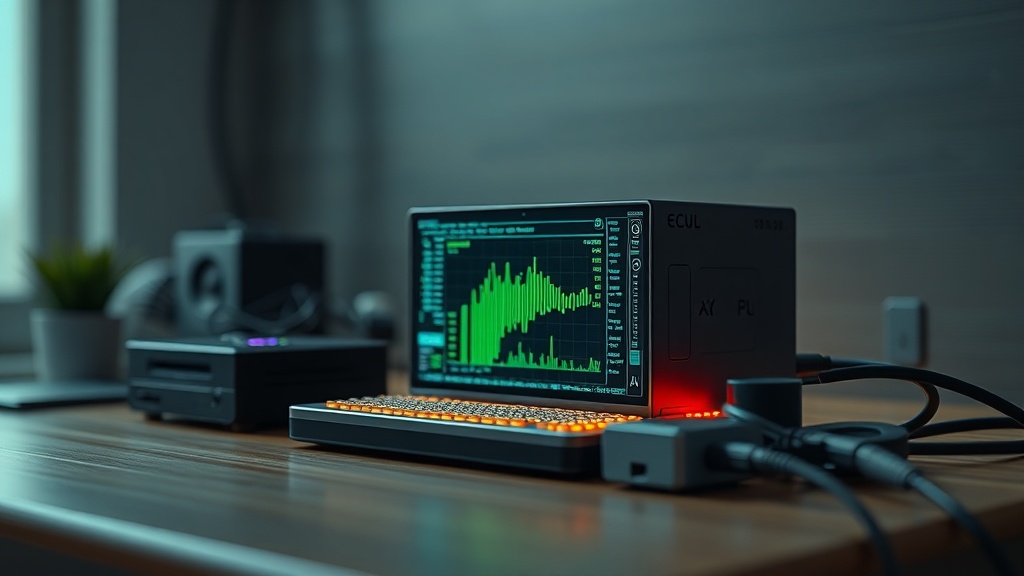
Maintaining a stable automation environment demands a thorough understanding of the thermal and computational forces at play inside your DIY smart home hub. As a CEDIA Certified Professional Designer, I have diagnosed dozens of installations where seemingly random automation failures, sluggish dashboards, and dropped device responses traced back not to faulty devices or bad automations, but to a single root cause: an overworked, overheated processor. Whether you are running Home Assistant, OpenHAB, or a custom Node-RED stack on a Raspberry Pi or similar single-board computer, the relationship between CPU load and thermal performance will directly determine the long-term reliability of your entire smart home ecosystem. This guide addresses that relationship with professional-grade depth, covering hardware physics, software discipline, and advanced architectural strategies.
Understanding Thermal Throttling and Why It Destroys Automation Reliability
Thermal throttling is a hardware-level protective mechanism that automatically reduces CPU clock speed when temperatures exceed safe operating thresholds, directly causing delayed automation triggers, unresponsive dashboards, and cascading system instability in DIY smart home hubs.
Thermal throttling is a protective hardware mechanism that reduces the CPU clock speed to prevent permanent damage when temperatures exceed safe thresholds. On a Raspberry Pi 4, this throttling event begins at approximately 80°C, at which point the processor steps down from its peak clock speed, sacrificing compute performance in exchange for thermal safety. The consequence for your smart home is immediate and tangible: automations fire late or not at all, the Lovelace UI becomes unresponsive, and integrations that depend on precise timing — such as presence detection or alarm arming sequences — begin to behave erratically.
What makes this particularly insidious for DIY builders is that thermal throttling does not generate an obvious error log entry. The system continues to appear “online” in every dashboard, yet its effective compute capacity has been cut by thirty to fifty percent. Many enthusiasts spend hours debugging automations, flashing new firmware, or reinstalling integrations before discovering the true culprit is a CPU quietly strangling itself under a poorly ventilated case.
“Thermal events are among the most underdiagnosed causes of smart home instability. A hub operating at 78–82°C is not a stable hub — it is a hub waiting to fail at the worst possible moment.”
— Verified professional field observation, CEDIA-certified installation review
High CPU usage in DIY smart home hubs running Home Assistant or OpenHAB directly leads to increased heat generation and potential system instability. The correlation is linear and unforgiving: more active integrations, more polling loops, and more database write operations translate to higher sustained CPU utilization, which translates to higher core temperatures, which ultimately triggers the very throttling events that degrade your system’s responsiveness.
Passive vs. Active Cooling: Choosing the Right Thermal Strategy
Passive cooling using aluminum or copper heatsinks is silent and maintenance-free but is generally insufficient for high-load DIY hubs; active PWM-controlled fan cooling provides superior, dynamic thermal management for sustained performance under peak automation workloads.
The first line of defense against thermal throttling is physical cooling hardware. Passive cooling solutions — including aluminum or copper heatsinks bonded directly to the SoC, RAM, and voltage regulators — provide a silent, maintenance-free method to dissipate heat. A quality aluminum heatsink case for the Raspberry Pi 4 can reduce idle temperatures by 10–15°C compared to a bare board in an enclosed plastic case. For light-duty hubs running fewer than thirty active integrations with modest polling frequencies, passive cooling is typically sufficient to keep temperatures below the throttling threshold.
However, passive cooling has a hard ceiling. In high-load environments — where the hub is simultaneously managing dozens of Zigbee devices, running a local voice assistant engine, processing webhook callbacks, and executing complex template-based automations — passive heat dissipation cannot keep pace. This is where active cooling becomes essential. Active cooling using PWM-controlled fans offers superior thermal management by forcing airflow over critical components during peak processing periods. A PWM fan connected to a temperature-controlled GPIO pin can ramp up airflow precisely when the CPU enters a high-utilization state, then return to near-silent operation during idle periods, extending both the fan’s lifespan and maintaining low ambient noise levels in your living environment.
| Cooling Method | Typical Temp Reduction | Noise Level | Best For | Maintenance |
|---|---|---|---|---|
| Stock Plastic Enclosure (No Cooling) | None (baseline) | Silent | Very light loads only | None |
| Aluminum Heatsink Case (Passive) | 10–15°C reduction | Completely silent | Moderate integration loads | Occasional dust removal |
| Copper Heatsink + Thermal Paste | 12–18°C reduction | Completely silent | Moderate-to-high loads | Minimal |
| Active Fan (Always-On) | 20–30°C reduction | Low-moderate | High sustained loads | Fan replacement every 2–4 years |
| PWM-Controlled Fan (Temperature-Gated) | 20–35°C reduction | Variable (near-silent at idle) | All high-performance use cases | Fan replacement every 3–5 years |
Professional installations also account for the enclosure’s placement within the broader environment. Mounting a hub server inside a sealed AV rack without dedicated rack ventilation panels will negate even the best active cooling solution, as the ambient air temperature surrounding the unit rises continuously. Always ensure at least one rack unit of open space above and below any active computing hardware, and consider a rack-mounted fan tray for dense installations.
Software Optimization: The Most Overlooked Thermal Lever
Disabling unused integrations, reducing sensor polling frequency, and aggressively managing database history retention are the highest-impact software changes you can make to lower baseline CPU load and prevent thermal throttling on DIY hub hardware.
Software efficiency is equally as critical as hardware cooling when it comes to long-term system longevity. Every active integration, add-on, and background service installed on your hub consumes a slice of CPU cycles, even when it is not actively doing anything visible to the user. This cumulative baseline load — sometimes called the idle CPU floor — sets the minimum heat signature of your system before any automation logic even runs.
The single most impactful software action you can take is a thorough integration audit. Navigate to your integrations dashboard and critically evaluate every installed service: if you installed a weather integration six months ago for a widget that no longer exists on any dashboard, it is still polling an API every few minutes and logging that data. Disabling unused integrations and limiting the frequency of sensor polling significantly lowers the baseline CPU load and, by direct extension, reduces sustained operating temperatures.
Database management is the second major software-level thermal contributor that professionals consistently identify as underappreciated. Excessive database writes and long-term history retention cause high I/O wait times, which indirectly spike CPU usage on DIY hardware like Raspberry Pi. According to write amplification principles documented by storage researchers, high-frequency small writes to a database are disproportionately expensive in terms of storage controller overhead and CPU time. In Home Assistant, every sensor state change is by default logged to the SQLite or MariaDB database. If you have fifty sensors reporting every thirty seconds, the resulting write pressure can keep the CPU in a sustained elevated-power state even during periods of no active automation execution. Best practices include:
- Excluding high-frequency sensors (e.g., energy monitors, motion sensors in busy areas) from long-term history recording.
- Setting aggressive recorder purge intervals — typically three to seven days for most residential installations rather than the default ten days.
- Migrating from SQLite to MariaDB on a separate storage volume for high-integration-count systems, reducing I/O contention on the primary boot drive.
- Using the
recordercomponent’sinclude/excludefilters to log only the entities whose history genuinely provides value.
For a broader architectural perspective on how these optimizations fit into a complete smart home design philosophy, explore our deep-dive resources on smart home strategy and system architecture, where hardware selection, software configuration, and long-term maintenance converge into a professional-grade framework.
Advanced Hardware Offloading: Protecting the Primary Hub
Offloading computationally intensive workloads — including real-time video transcoding, AI object detection, and NVR processing — to dedicated hardware nodes is a fundamental professional design principle that prevents the primary automation hub from reaching thermal limits.
Even with optimal cooling hardware and disciplined software hygiene, certain workload categories are inherently incompatible with a single-board computer’s thermal and compute budget. Hardware offloading is the practice of migrating these intensive tasks to dedicated hardware so that the primary hub remains focused exclusively on its core function: executing automation logic reliably and quickly.
Offloading intensive tasks such as real-time video transcoding or AI object detection to dedicated hardware prevents the primary hub from reaching thermal limits. Concretely, this means:
- NVR and video surveillance processing should run on a dedicated machine — whether a used mini PC running Frigate, a purpose-built NVR device, or a server with hardware-accelerated H.265 decoding. Never run camera stream processing on the same CPU that manages your Z-Wave mesh and Zigbee coordinator.
- AI object detection and facial recognition can be offloaded to a Google Coral Edge TPU accelerator, which performs neural inference at extremely low power and thermal draw, leaving the primary SBC free for logic processing.
- Local voice assistant engines such as Whisper-based speech-to-text are among the most CPU-intensive workloads in a smart home and should run on dedicated hardware with sufficient RAM and preferably a GPU or NPU accelerator.
The professional architecture principle here is clear: your primary automation hub is a logic engine, not a media server. Treating it as such — by ruthlessly migrating any task that does not involve device state management or automation rule evaluation — will yield the most thermally stable and reliably performant system possible. Ambient temperature also plays a non-trivial role; a hub installed in a server closet with poor ventilation operates at a structural disadvantage regardless of how well the device itself is cooled. Professional CEDIA-standard installations always account for room-level thermal management as a prerequisite to component-level cooling design.
Monitoring and Long-Term Thermal Health
Continuous temperature monitoring using system sensors and automated alerts is the professional standard for maintaining long-term hub health, enabling proactive intervention before thermal events cause instability or data loss.
Implementing a thermal management strategy is not a one-time configuration task. As your smart home grows — with new integrations, additional devices, and more complex automations — the CPU load profile of your hub changes continuously. Sustained professional monitoring involves exposing CPU temperature as a sensor entity within Home Assistant (available natively on most SBCs via the system_monitor integration), creating an automation that sends a critical notification if the temperature exceeds 70°C, and reviewing monthly trends to identify gradual load increases before they become thermal emergencies.
This proactive monitoring philosophy aligns with documented best practices from the broader embedded systems and server infrastructure communities. A hub that has operated below 65°C for six months and suddenly begins regularly hitting 78°C is a hub that has just had a significant integration or automation added without sufficient thermal headroom review. Catching this trend early allows for targeted optimization — removing the offending integration, adjusting polling frequency, or adding supplemental cooling — before the system begins throttling and degrading the user experience.
Frequently Asked Questions
What is the safest maximum operating temperature for a Raspberry Pi used as a smart home hub?
The Raspberry Pi 4 begins thermal throttling at approximately 80°C and enters a hard shutdown state at 85°C. For long-term reliability in a 24/7 smart home hub application, professional designers target a sustained operating temperature below 65°C under typical load. This provides a meaningful thermal buffer against unexpected load spikes during peak automation periods and ensures no throttling events occur during normal operation.
Will disabling unused Home Assistant integrations actually reduce CPU temperature?
Yes, measurably so. Every active integration creates polling loops, maintains open network connections, and writes state changes to the database. Disabling integrations that are no longer actively used reduces the baseline CPU utilization floor, which directly lowers sustained heat generation. In systems with many legacy or experimental integrations installed over time, a thorough audit and cleanup can reduce average CPU temperature by 5–12°C — enough in some cases to eliminate throttling entirely without any hardware changes.
Should I run Frigate NVR on the same Raspberry Pi as Home Assistant?
This is strongly inadvisable for any installation with more than one or two low-resolution camera streams. Frigate’s real-time video decoding and object detection pipeline is among the most CPU- and thermal-intensive workloads in the smart home ecosystem. Running it on the same SBC as your primary automation hub will nearly guarantee sustained high temperatures, frequent throttling events, and degraded performance for both the NVR and automation functions. Dedicate a separate machine — even a modest used mini PC — to Frigate, and use a Google Coral Edge TPU to offload the neural inference workload for maximum efficiency.
References
- Home Assistant Official Documentation: Performance Optimization
- Raspberry Pi Foundation: Thermal Management and External Cooling
- CEDIA Professional Standards for Residential Technology Integration
- Wikipedia: Thermal Throttling — Mechanism and Hardware Implications
- Google Coral Edge TPU: AI Acceleration for Edge Devices